

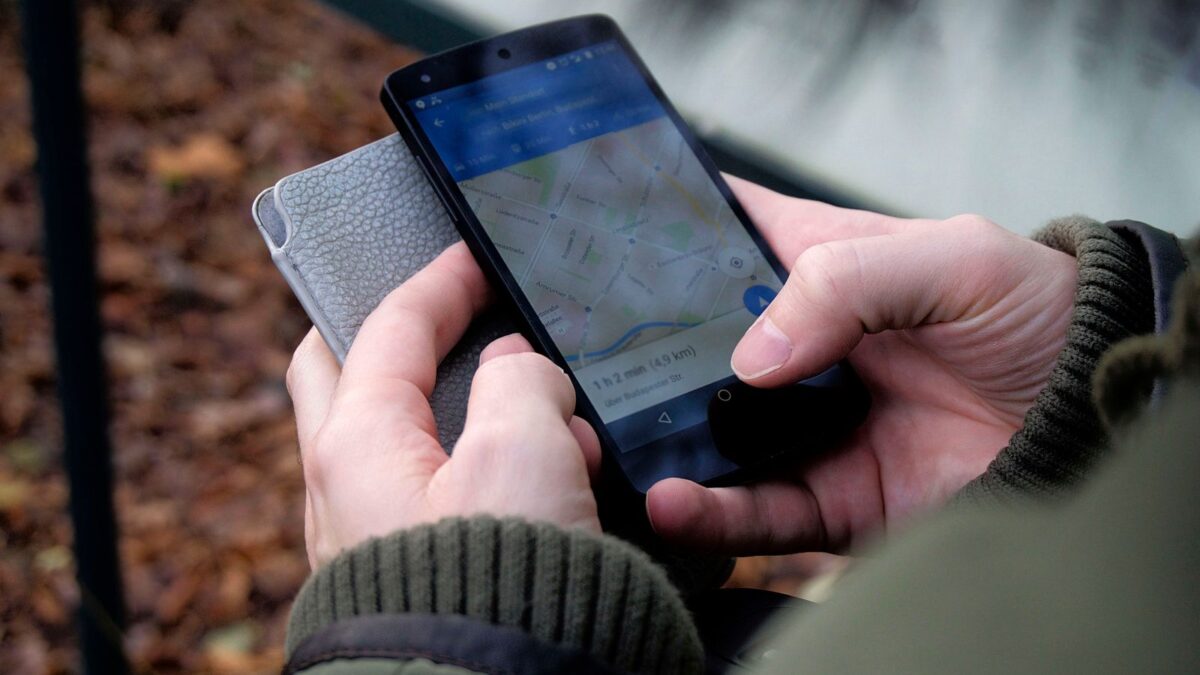
Find Hub is Google’s free tool for Android, and it lets you find a lost Android phone from another phone or a laptop. According to Google’s own help page, it can show your phone on a map, ring it at full volume for five minutes even when it’s on silent or vibrate, lock it with a message on the screen, or erase it completely. All of that depends on a few settings being on before the phone goes missing, so the best time to check them is now, while the phone is still in your hand.
Find Hub can only help if your phone was ready before it went missing
Google lists five conditions for finding, locking or erasing a phone. It has to have power, be connected to mobile data or Wi-Fi, be signed in to a Google Account, have Find Hub turned on, and be visible on Google Play. Adding a Google Account turns Find Hub on automatically, so if you signed in with your Gmail address when you set the phone up, it should already be running. It’s still worth confirming, because one switched-off setting is all it takes to leave you staring at an empty map.
To check, open Settings > Security > Find Hub and make sure Allow device to be located is on. If your phone’s menu looks different, type Find Hub into the search bar at the top of Settings. Then go to android.com/find on another device, sign in with the same Google Account and see whether your phone shows up. If you have more than one device, pick yours at the top of the screen.
Don’t skip the Google Play part, because Google says that if you hide a device on Google Play, you won’t find it in Find Hub. In your Play device list, the Show in menus box next to your phone should be ticked. These steps come from Google’s guide to getting ready to find a lost Android device.
Switch on offline finding so a phone without data can still be traced
Newer phones can also be found through the Find Hub network, which helps locate a device that isn’t online. You’ll find the setting under Settings > Google > All services > Find Hub > Find your offline devices. Google offers four choices there. Off stores no recent encrypted locations and keeps the phone out of the network. Without network keeps the phone out of the network but still lets you see locations it saved while it was online. With network in busy places only lets the network help in crowded areas such as airports, and With network everywhere lets it help in both busy and remote areas.

Both network options need a PIN, pattern or password on your lock screen, and Google notes that some of these steps require Android 14 or later. On supported phones such as the Pixel 8 series, the network can locate the phone for several hours after it’s been switched off, as long as one of the two network options was chosen and Bluetooth and Location were on when it shut down.
The moment you notice it’s gone, sign in from any phone or laptop
Open the Find Hub app on another Android phone or tablet, or visit google.com/android/find in a browser. Sign in with your Google Account and select the missing phone, which will then receive a notification. You may be asked for its lock screen PIN on Android 9 or higher, or for your Google password.
The map position is estimated from GPS, nearby Wi-Fi networks and cell towers, and Google says accuracy can range from about 20 metres to a few thousand metres. If the current location can’t be found, you may see the last known one instead. You can tap Get directions to head there, or Find nearby when the phone is within about 10 metres. Play sound rings the phone at full volume for five minutes even on silent or vibrate, which is perfect when it has only slipped between the chair cushions at home.
Lock it with your number on the screen before you think about erasing
Mark as lost locks the phone with its PIN, pattern or password and switches off notifications, widgets and quick access. You can also add a contact number and a short message, so anyone honest who picks it up knows how to reach you. Use a number that isn’t on the missing phone, such as a family member’s line.

Be careful with Erase, because it’s final. Google warns that it permanently deletes all the data on the device, though it may not delete an SD card. After a factory reset the phone no longer appears in Find Hub, so you can’t locate it there again. If you do get it back after erasing it, you’ll need your Google Account password to use it. That’s why erasing makes the most sense once you’ve given up on recovering the phone and you’re more worried about your photos, chats and banking apps.
Save your IMEI somewhere other than the phone itself
Google says your mobile provider can use your phone’s IMEI to disable it. You can see the number in your phone’s settings, or in Find Hub by selecting the device and tapping Settings. On Android 12 and up you can also choose whether the IMEI shows on the lock screen, under Lost Device Protection or Theft Protection. Write it down in a notebook or save it in your email today, because once the phone is gone you can’t open its settings to look.
When you set up WhatsApp on another phone, keep the verification code to yourself and read how the WhatsApp verification code scam works. If you end up buying a replacement, our guide to the NCC *315# device check walks you through checking a phone before you pay.
Before you put the phone down, confirm Find Hub is on, choose an offline finding option, sign in once at android.com/find so you know what the screen looks like, and keep your IMEI written down. If the worst happens, you’ll already know exactly where to go to ring it, lock it or trace it.







Join the conversation